Launchfy.support is a service that lets you create a site like this —
with the “help” part replaced by your own app name — in just three minutes.
How to Create Pages in Launchfy
All pages on help.launchfy.site, including this page, are created with Launchfy
Screen Layout
This is the screen layout of pages you can create with Launchfy.
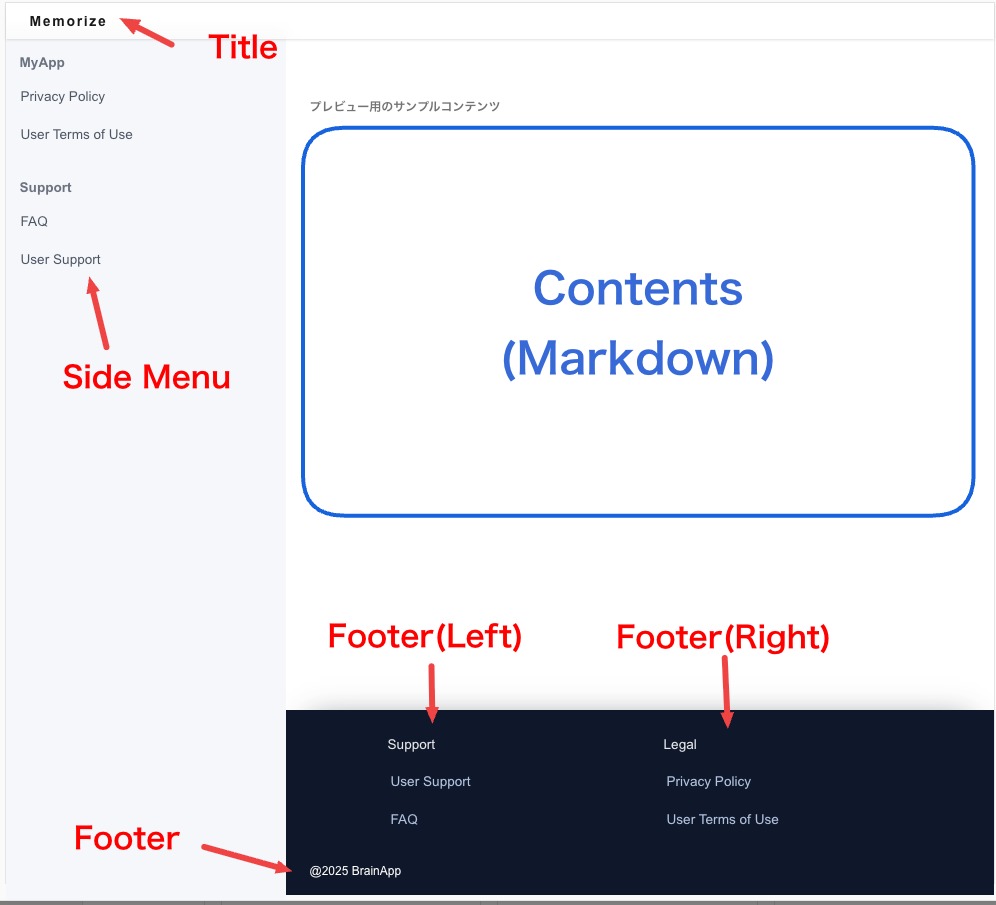
- The red text areas are common across all screens. You can configure them in the Common Layout menu.
- The main content is written in Markdown. On the page edit screen, choose the appropriate path and title, then edit the Markdown in the editor.
Editing Markdown
The tags available in Markdown are listed on the How to Write Markdown page.
Toolbar
- Image: Images displayed in Markdown are uploaded and managed server-side.
- Internal link: You can add links to other pages within the same app.
- External link: You can add links to external pages.
How to Localize (Multi-language Deployment)
Launchfy pages are designed with multilingual support in mind. For the overall mechanism such as URL structure, see this page.
Main Content (Markdown section)
You need to create the content for each language you want to support. Just translate the Markdown content appropriately.
There is a usage limit, but an AI-based translation tool is available. Each language's edit page has an "AI Translate" button that translates the Markdown from the default language.
Images
The clearest method is to prepare images for each language and reference the appropriate image in each language's Markdown.
A more convenient method is to add text to images in Launchfy and make that text multilingual. For example, the screen layout image on this page uses the same screenshot across all languages, and only the blue and red text portions are localized. This is much easier than preparing multiple images.